
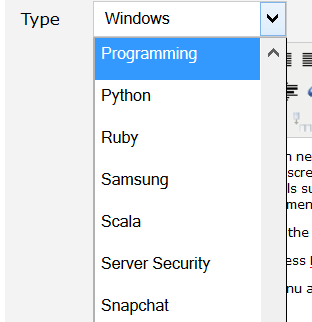
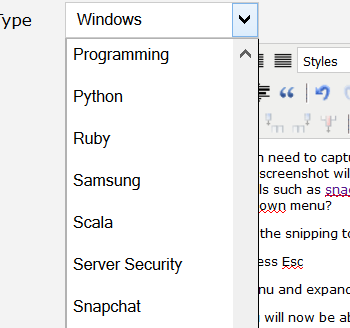
As an IT professional, we often need to capture screenshot of what we are working on to give proof of what we are doing and why we do it. The screenshot will provide a good sense to other people. You may be familiar with taking screenshot with different tools such as snagit, snipping tool or the Windows PrtSc button. But do you know how to take a screenshot of a dropdown menu?
Here we show you how to capture screenshot of dropdown menu with the snipping tool provided since Windows 7. Below are the steps:
1. Open snipping tool and press Esc
2. Move to the dropdown menu and expand it
3. Then press Ctrl+PrtSc, you will now be able to capture the screenshot of the dropdown menu.
Another workaround is using Paint provided by Windows. Steps are:
1.Open Paint on Windows
2. Move to the dropdown menu and expand it
3. Press Alt+PrtSc and paste it to the Paint
4. Then you can use any screenshot capturing tool or picture cropping tool

No comment for this article.