Capture Screenshot of Dropdown Menu

English 简体中文 繁体中文 ภาษาไทย Tiếng Việt
Summary

Capturing screenshots of active dropdown menus, which often disappear with standard tools, can be achieved through specific techniques. One method utilizes the Snipping Tool: open it, press Esc, then expand the desired dropdown and press Ctrl+PrtSc to initiate the capture. Alternatively, a workaround involves using Paint; open Paint, expand the dropdown, press Alt+PrtSc to copy the active window, and then paste it into Paint for subsequent cropping or editing. These approaches provide reliable ways to document dynamic UI elements for proof or reference.

身為一位 IT 專業人員,我們經常需要擷取正在處理的工作畫面截圖,以證明我們正在做什麼以及為什麼這麼做。螢幕截圖可以讓其他人清楚了解情況。您可能熟悉使用不同的工具來擷取螢幕截圖,例如 snagit、剪取工具或 Windows 的 PrtSc 按鈕。但是您知道如何擷取下拉式選單的螢幕截圖嗎?

在這裡,我們將向您展示如何使用 Windows 7 開始提供的剪取工具來擷取下拉式選單的螢幕截圖。以下是步驟:

1. 開啟剪取工具並按下 Esc

2. 移動到下拉式選單並展開它

3. 然後按下 Ctrl+PrtSc,您現在就可以擷取下拉式選單的螢幕截圖了。
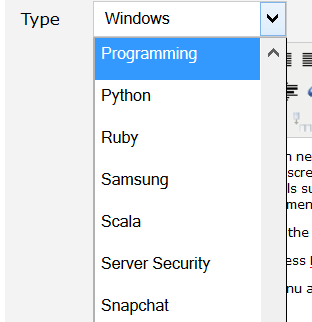
另一個解決方法是使用 Windows 提供的「小畫家」。步驟如下:

1. 在 Windows 上開啟「小畫家」

2. 移動到下拉式選單並展開它

3. 按下 Alt+PrtSc 並將其貼到「小畫家」

4. 然後您可以使用任何螢幕截圖擷取工具或圖片裁剪工具
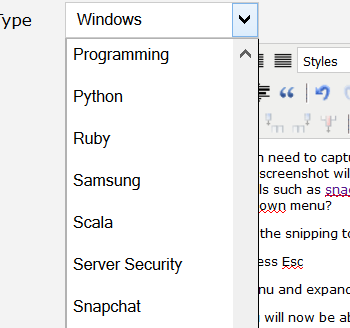
WIDNOWS SCREENSHOT DROPDOWN MENU CAPTURE

  RELATED

  COMMENTS

0

No comment for this article.