
More and more people are using Mac computers or switch from Windows or other OS to MacOS, there are lots of shortcut keys which can help improve the work efficiency or ease operations.
This post will try to list some commonly used shortcut keys in Mac. But before that, let's first know some common keys on a Mac computer keyboard.
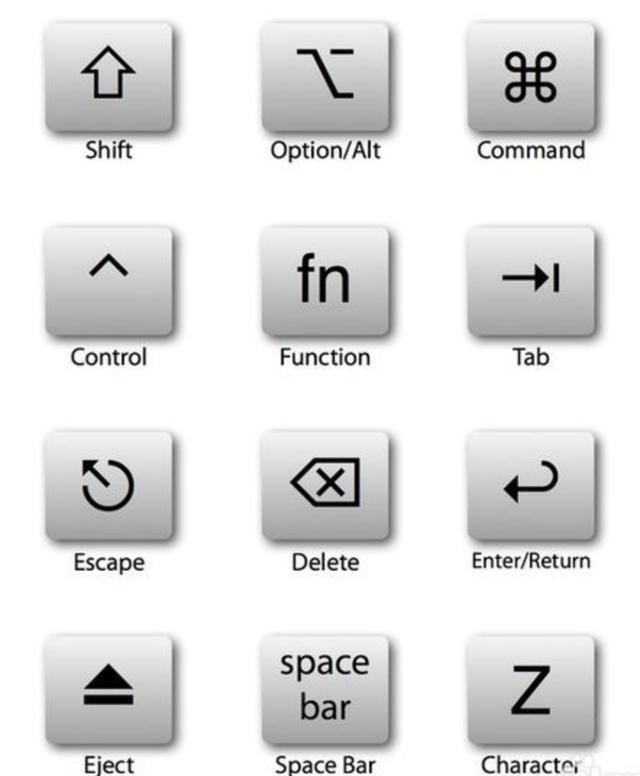
There are four major function keys: Command, Control, Option and Shift. Most of the shortcut keys will combine the functional key and other key.
Basic
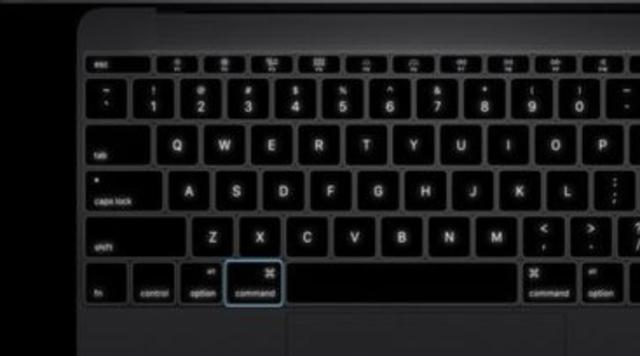
Command key is the most important key in Mac keyboard, it is function the same as Ctrl key in Window in most cases.
- Command + Z: undo an operation
- Command + Shift + Z: redo an operation
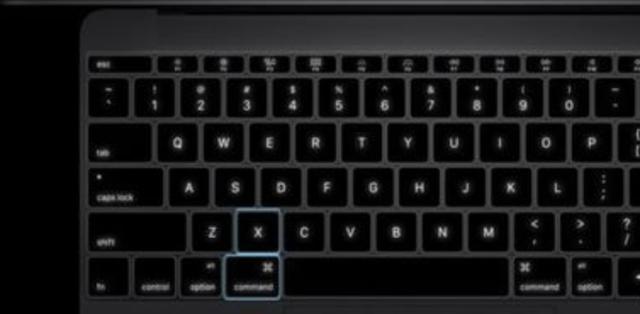
- Command + X: cut
- Command + C: copy
- Command + V: paste
- Command + A: select all
- Command + S: save
- Command + F: find
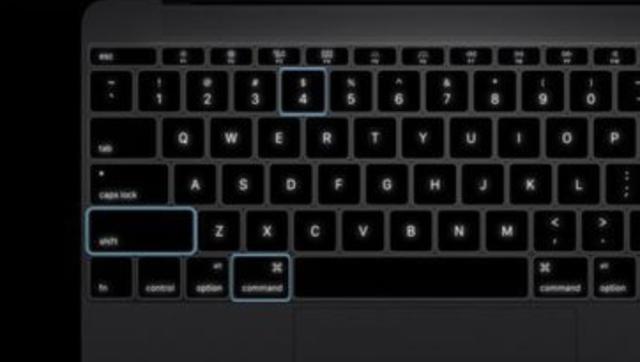
- Command + Shift + 4: capture screenshot of selected area and save to a file
- Command + Shift + 3: capture screenshot of the full screen and save to a file
- Command + Shift + Control + 4: capture screenshot of selected area to clipboard
- Command + Shift + Control + 3: capture screenshot of the full screen to clipboard
- Command + Shift + 4(press Space key later): capture screenshot of a window to a file
- Command + Shift + Control + 4(press Space key later): capture screenshot of selected area of one window to clipboard
In Application
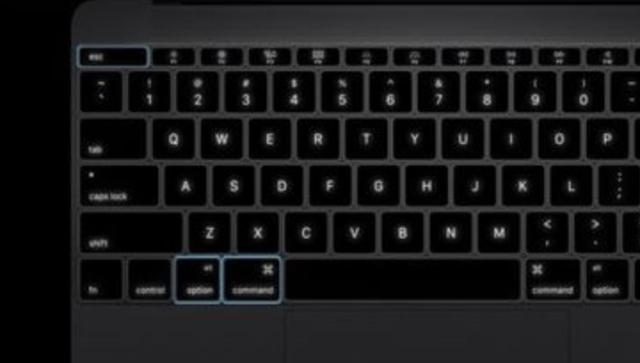
- Command-Option-esc open "Force Quit Applications" window
- Command + H: hide the current running application window
- Command + Option + H: hide other application window
- Command + Q: quit the forefront application
- Command + Tab: switch to the next recent used application in the open application selection window, the same as the Alt + Tab in Windows
Text Operation
- Command + left key: move the cursor to the beginning of the current line
- Command + right key: move the cursor to the end of the current line
- Command + up key: move the cursor to the beginning of the article
- Command + down key: move the cursor to the end of the article
- Command + B: add bold to the selected text
- fn + Delete: similar to the Delete key
- fn + up key: page up
- fn + down key: page down
- fn + left key: scroll to the beginning of the article (Home)
- fn + right key: scroll to the end of the article (End)
- Option + right key: move to the end of next word
- Option + left key: move to the beginning of the previous word
- Control + A: move to the beginning of the line or paragraph
In Finder
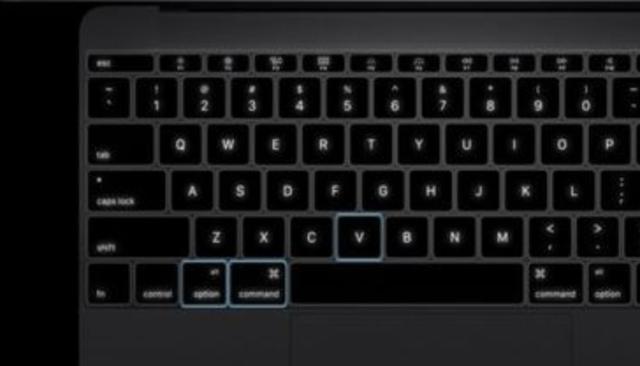
- Command + Option + X: cut file
- Command + Shift + N: create new folder
- Command + Shift + G: bring the window to forefront
- Command + up key: move to parent folder
- Command + Delete: move file to trash
- Command + Shift + Delete: clear the trash bin
- Space key: quick preview of the selected file
In Browser
- Command + L: move cursor to address bar
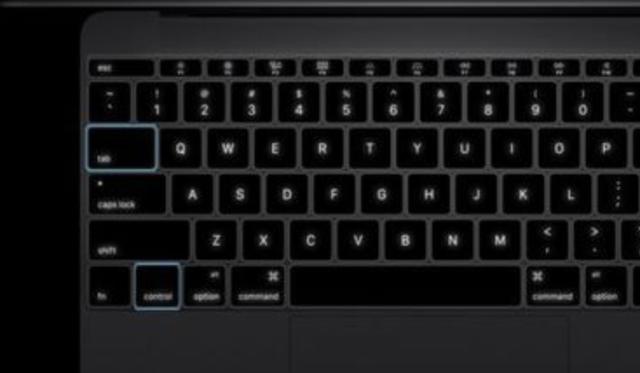
- Control + Tab: move to next tab
- Control + Shift + Tab: move to previous tab
- Command + +/=: zoom in page
- Command + -: zoom out page

No comment for this article.