
PageSaver can save a web page as a PDF in two ways. The normal Save as PDF keeps the page as you see it: layout, columns, images, the lot. Reader Mode PDF does something different. It pulls out just the article — the title, the author, and the body text — and leaves behind the navigation bars, ads, sidebars, cookie banners, comment sections, and share buttons. You get a clean, printable document that reads like a page from a book instead of a screenshot of a busy website.
This guide explains what Reader Mode does, how it produces the PDF, when to use it, and what you need to run it. We build PageSaver, the browser extension and tools on PixelsTech.
What Reader Mode PDF is for
Most long-form web pages wrap their actual content in a lot of other material. A single news article can sit inside a page that also carries a menu, a newsletter box, three ad slots, a “related stories” rail, and a floating video. If you save that page normally, all of it comes along, and the result can be hard to read and wasteful to print.
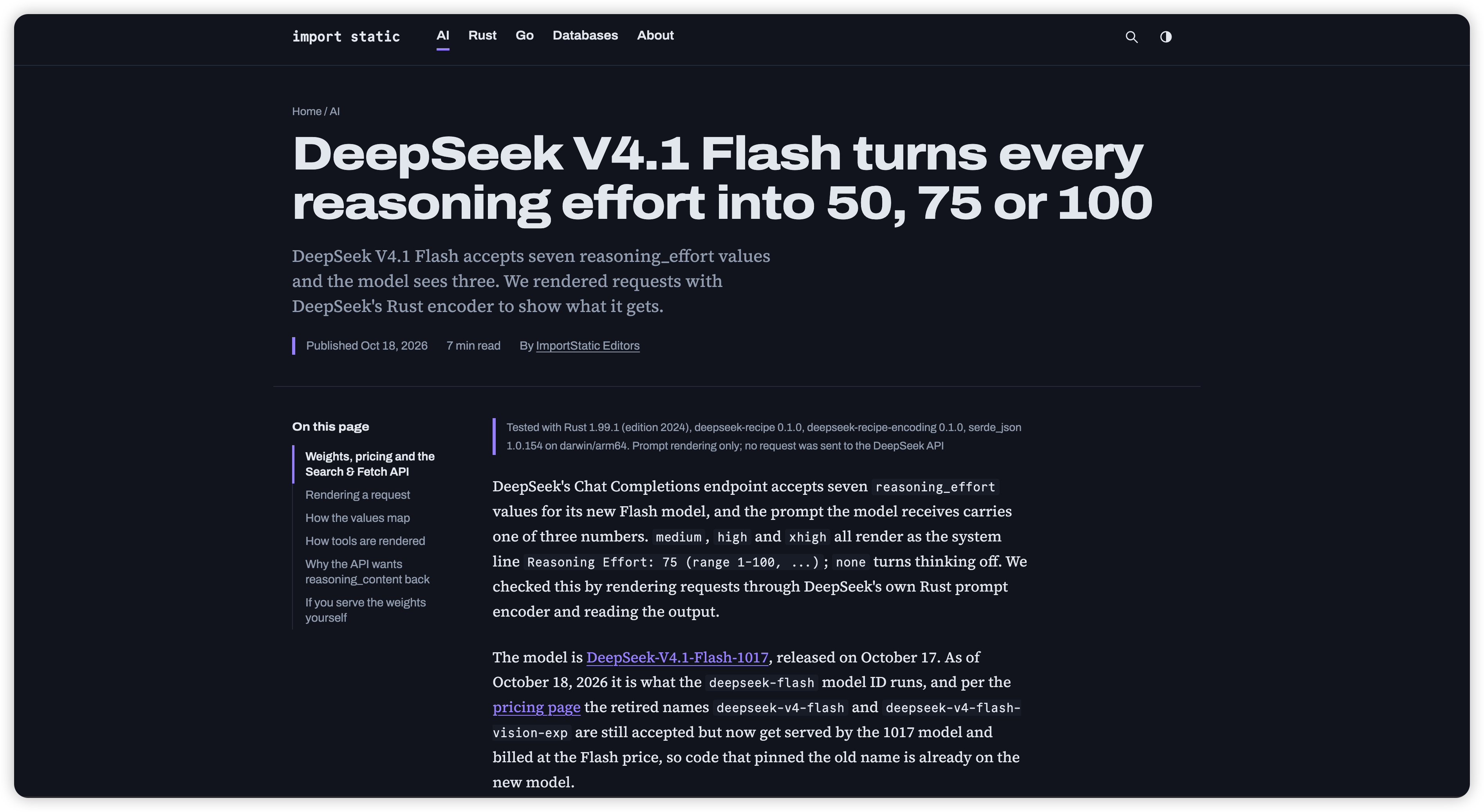
Reader Mode is built for the case where you only want the words. It is the right choice for blog posts, news stories, documentation, long essays, and tutorials — anything whose value is the article itself. The output is a tidy PDF you can read later, archive, annotate, or send to someone without the surrounding clutter.
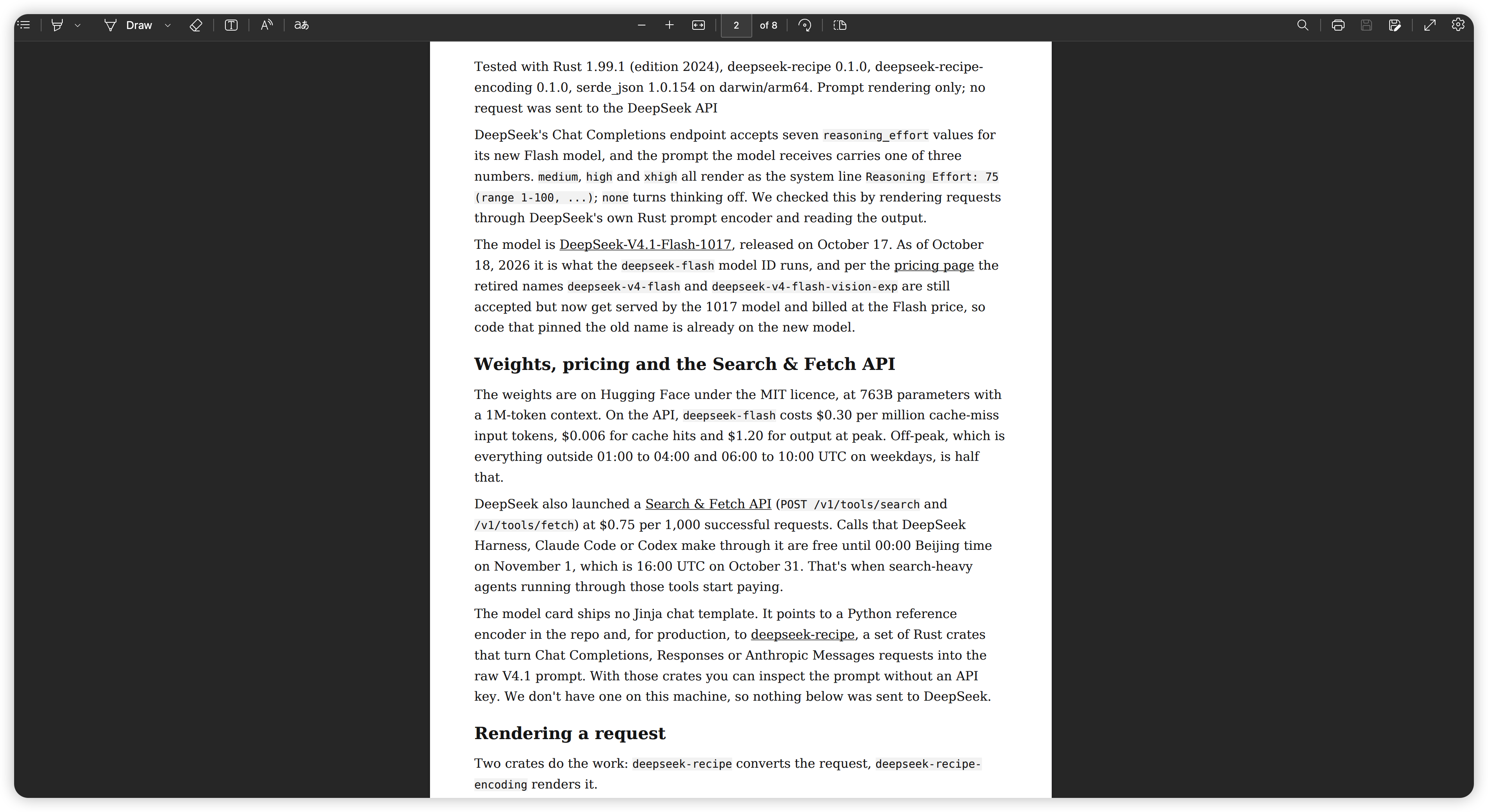
How it produces the PDF
Reader Mode works in a few steps, most of which happen the moment you trigger it:
- It finds the article on the page. In your browser, PageSaver runs a content-extraction pass — the same idea behind the “reading view” built into Firefox and Safari, using Mozilla's open-source Readability library. It identifies the main headline, the author if one is published, and the block of text that makes up the story, and discards the rest of the page structure.
- It cleans up the content. The extracted article is stripped down to simple, document-style HTML: headings, paragraphs, lists, quotes, images that belong to the article, and links. Scripts, trackers, and page chrome are removed.
- It renders a PDF. The cleaned content is sent to PixelsTech and typeset into a PDF with consistent fonts, margins, and spacing, so every Reader Mode PDF looks the same regardless of how the original site was styled.
- It adds the source. A line at the bottom of the document records the original page's link, so the PDF always points back to where it came from.
Because the PDF is generated from the article's real text rather than a picture of the page, the result stays selectable and searchable: you can copy passages, search inside the file, and the text reflows cleanly.
Optional extras: AI summary and editing
Two optional steps can run before the PDF is created.
An AI summary can be added to the top of the document: a short paragraph that captures the article's main points, placed just under the heading. It is useful when you are archiving a lot of reading and want the gist at a glance. You can turn this on or off in PageSaver's settings.
You can also choose to review the content before it becomes a PDF. With edit-before-download enabled, Reader Mode opens the cleaned article in an editor first, where you can trim sections, remove an image, or fix anything the extraction got wrong, and then generate the final PDF from what you approved.
When Reader Mode is not the right tool
Reader Mode assumes the page is an article. On pages that are not — a web app, a dashboard, a product grid, a map, a single-page form, or a login screen — there may be little article-style text to extract, and the result can look sparse or incomplete.
PageSaver checks for this. If it cannot find enough article-style content, the Reader Mode PDF includes a short notice at the top saying the page may not suit Reader Mode, and points you to a better option. For a faithful copy of a page exactly as it appears in the browser, use the normal Save as PDF, or the PageSaver Mac app for a reliable full-page capture.
A good rule of thumb: if the browser's own reading view would work on a page, Reader Mode will too. If it wouldn't, reach for normal Save as PDF instead.
What you need to use it
Reader Mode requires a signed-in PageSaver account. Normal Save as PDF does not, but Reader Mode does, because the PDF is generated on PixelsTech servers and tied to your account.
A free account can create a small number of Reader Mode PDFs — currently up to five — so you can try it and use it occasionally at no cost. A paid plan removes that limit and lets you create Reader Mode PDFs without a cap. The normal Save as PDF and image-saving features have their own separate allowances and do not use up your Reader Mode count.
How to use it
After installing the PageSaver extension and signing in, open the article you want to save and start Reader Mode one of two ways:
- Click the PageSaver toolbar icon and choose Save as PDF (Reader Mode).
- Or right-click the page and pick the Reader Mode PDF option from the PageSaver menu.
PageSaver extracts the article, applies any summary or editing step you have enabled, and downloads the finished PDF. If the page turns out not to be article-shaped, read the notice at the top of the file and switch to normal Save as PDF for that one.
Reader Mode is the option to reach for when you want the reading, not the website. For everything else — capturing a page exactly as rendered — normal Save as PDF is still there.

No comment for this article.