
Search "merge PDF" and the first page of results is almost entirely websites that want the file uploaded first.
That's so normal nobody stops on it. To put page numbers on a contract, you hand over the whole contract. To make a payslip smaller, you send the payslip. The tool is free, the upload is the price, and almost nobody opens the network tab to see where the file went.
iLovePDF is the best-known version of that deal, and it's a fair one as those deals go. PixelPDF, which I built, doesn't make the deal at all: the file never leaves your browser. That single split explains every difference below — including the ones where iLovePDF comes out ahead, which get their own section. Everything I say about their product here comes from their own pages.
Two answers to one question
The question is: where does the work happen?
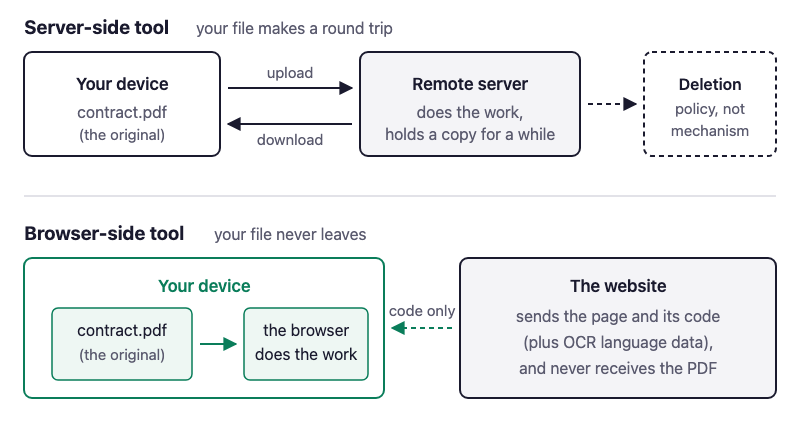
iLovePDF answers it the way almost every online PDF tool does. You pick a file, it travels over the internet to their servers, the servers do the merging or compressing or OCR, and the result travels back to you. Their infrastructure is doing the work, which is why a paid plan can chew through a multi-gigabyte file without caring how old your laptop is.
PixelPDF answers it differently. Opening a PDF on a PixelPDF page loads it into the page itself, the same way opening a photo in an image viewer loads it into that program. The processing then happens in your browser, on your machine, using the same kind of open-source PDF engines those services run on their side (pdf-lib, PDF.js, and Tesseract for OCR, compiled to run in a browser). Your file never becomes a network request.
What iLovePDF says it does with your file
Their security page is specific, and worth reading rather than assuming. The key commitments: "all files processed within our platform are automatically and permanently deleted within two hours," data is encrypted "both in transit and at rest," the company is "fully GDPR compliant," and it holds "ISO/IEC 27001:2017 certification." You can also delete a file from their servers immediately after the job finishes instead of waiting out the two hours.
That is a genuinely better posture than most free PDF sites, which tell you nothing at all. An outside auditor has looked at how they handle data, and there's a stated retention window instead of a shrug.
It is still a promise about what happens to your file after it arrives, not a reason the file doesn't need to arrive. Those are different kinds of assurance. One depends on a company keeping its word, its staff, and its cloud provider in order; the other depends on the file never leaving the building. If the document is a tax return or a scan of someone's passport, that distinction is the whole thing.
What PixelPDF does instead, and how to check
Since nothing is uploaded, there's nothing to charge for and no reason to ask who you are. That's not generosity, it's just what the design leaves behind. The comment sitting at the top of the shared code for every tool page says it plainly: "all processing happens client-side, so there is nothing to meter and nothing to gate." No account, no daily task count, no watermark on the output.
The useful part is that you don't have to believe me. Press F12 in Chrome, Edge or Firefox (or right-click the page and choose Inspect), switch to the Network tab, then run a tool on a real file. You'll see the page's own scripts and fonts load. You will not see your PDF go anywhere, because there is no request carrying it. Try the same thing on any upload-based tool and you'll watch the file go out.
That's a claim you can verify in ten seconds, which is a different category from a claim you have to trust.
Tool for tool
iLovePDF's plan comparison lists around forty line items. PixelPDF has twenty. The everyday set is the same on both: merge, split, rotate, crop, compress, watermark, page numbers, edit, sign, password protect, unlock, images to PDF and back, OCR a scan, PDF to Word, PDF to Markdown.
Where they diverge:
- Only on iLovePDF: Word, Excel and PowerPoint to PDF and back (their converters are better at Office formats than anything that fits in a browser tab), PDF/A for archiving, repair a damaged PDF, compare two versions, fill and build forms, a REST API, Zapier automation, and mobile apps.
- Only on PixelPDF: split one oversized page across several printable sheets with crop marks and overlap, analyze a file to see exactly what's eating the megabytes, inspect hidden structures and produce a cleaned copy before sharing, and Smart Redact, which finds likely sensitive values on the page and asks you to approve each one before removing it.
The redaction one matters more than it sounds. Scanning a document for ID numbers is the single task you'd least like to perform by uploading the document somewhere.
The limits that will actually bite you
Running in a browser means your device's memory is the ceiling, and PixelPDF is honest about where that lands: 50 MB per file, and keep the total under 100 MB. Past that your browser tab is the thing that suffers. iLovePDF sets its cap per tool rather than globally, and the numbers on their pricing table run into the hundreds of megabytes even on the free plan; Premium takes most tools to 4 GB.
So a 600-page scanned archive is not a PixelPDF job. Neither is OCR on a slow tablet, where their servers will finish long before your device does. If your files are big or your hardware is tired, the server model wins on raw capability and there's no argument to make.
Price, and what "free" covers
iLovePDF's free tier is real. Most individual tools work without paying, which is why it's the default suggestion in every "how do I merge a PDF" thread. What it holds back: batch processing is marked "Limited," the desktop and mobile apps need Premium, and OCR-backed PDF to Word and PDF to Excel, Smart Split, PDF/A and the AI tools are all excluded. Premium runs $4/month billed annually ($48/year), or $7/month if you pay monthly. All of those figures are what their pricing page showed in September 2026; plans move around, so check before you take my word for it.
PixelPDF is free with no account and no task limit, because of the metering point above.
The gap is widest on chained jobs. iLovePDF Workflows let you combine "up to four iLovePDF tools into a single automated flow," and they're a Premium feature. PixelPDF's workflow builder runs up to 20 steps, saves up to 50 named recipes in your browser, and will run the whole chain over a batch of 2 to 50 PDFs and hand you a ZIP with the results and a per-file report. Saved recipes store the steps, never the documents.
The table
| PixelPDF | iLovePDF | |
|---|---|---|
| Where files are processed | Your browser | iLovePDF servers (desktop app: your computer) |
| File leaves your device | No | Yes, on the web version |
| Retention | Nothing to retain | Deleted within two hours; immediate delete available |
| Account | Not required | Not required for most free tools |
| Max file size | 50 MB per file, 100 MB total | Per tool, into the hundreds of MB free; 4 GB on Premium |
| Number of tools | 20 | ~40 listed |
| Office formats (Word/Excel/PPT) | PDF to Word only | Full both-way conversion |
| OCR | In-browser, free | Free tier yes; OCR to Word/Excel is Premium |
| Batch | 2–50 files, ZIP output, free | "Limited" free, unlimited on Premium |
| Chained workflows | 20 steps, 50 saved recipes, free | Up to 4 tools, Premium |
| API / integrations | None | REST API, Zapier |
| Mobile app | Browser only | iOS and Android, Premium |
| What the network carries | The page's own code, and OCR language data | Your document, once per task |
| Price | Free | Free tier; Premium $48/year or $7/month |
| Verifiable privacy | Network panel shows no upload | Policy and ISO 27001 certification |
Where iLovePDF is the better answer
Four cases, and I'd give the same advice to a friend.
Your file is enormous, or your machine is slow. Their servers don't care about either. Mine is your own hardware, and it does.
You need Office conversions with decent fidelity. A browser tab can produce a reasonable Word file from a PDF, and PixelPDF does, but rebuilding a complex Excel workbook is a different weight class. Use the service that has a converter farm.
You're on a phone and want an app. PixelPDF works in a mobile browser, but there's no app, no share-sheet integration and no cloud storage pickers.
You want to automate PDFs inside a larger system. A REST API and Zapier are the right shape for that, and code running in someone's browser is not.
There's also the honest local-versus-local comparison, which is their desktop app: "the same features as the online service, while processing your files on your computer." That's a real answer to the privacy question, and if you want local processing on multi-gigabyte files, it's better than mine. It costs $48/year and runs on Windows and Mac. PixelPDF is free and runs anywhere there's a browser, including a work laptop you're not allowed to install software on. Pick accordingly.
Which one for which job
- Anything with personal data on it — ID scans, medical records, payslips, contracts, tax documents: use the tool that doesn't need a copy.
- Big files, or Office conversions, or your phone: iLovePDF, and their free tier probably covers it.
- A repeatable multi-step job over a pile of files: PixelPDF's workflow builder, which doesn't charge for the chaining.
- A locked-down work laptop: PixelPDF, since it's a web page and there's nothing to install. Your connection only ever carries the tool's own code, never the document, so a slow line doesn't turn into a slow upload.
The rule I'd actually apply: if you'd hesitate to email the document to a stranger, don't upload it to one either. For everything else, use whatever is already open in your browser.

No comment for this article.