
บางทีหลายคนอาจเคยเห็นลูกศรเล็กๆ บนทางลัดของแอปพลิเคชันบนเดสก์ท็อปหลังจากติดตั้งแอปพลิเคชันบน Windows บางคนอาจชอบ แต่บางคนอาจคิดว่ามันดูไม่สวยพอ เราอาจจำเป็นต้องลบลูกศรเล็กๆ เหล่านี้อย่างไรก็ตามเดสก์ท็อปสามารถทำความสะอาดได้ ดังนั้นอย่างไร?


หลายคนอาจใช้ซอฟต์แวร์ของบุคคลที่สามเพื่อลบลูกศรเล็กๆ จากนั้นพวกเขาต้องไปดาวน์โหลดซอฟต์แวร์และติดตั้ง แต่เราจำเป็นต้องทำเช่นนี้เพื่อลบลูกศรเล็กๆ หรือไม่? คำตอบคือไม่
ที่นี่ฉันเสนอวิธีง่ายๆ ในการทำเช่นนี้ ทำตามขั้นตอนด้านล่าง:
- ไปที่ เริ่ม-เรียกใช้-พิมพ์
regedit - หลังจากหน้าต่าง regedit ค้นหา
HKEY_CLASSES_ROOTขยายและค้นหาคีย์lnkfileในแผงด้านขวา ลบค่าIsShortcutปิดหน้าต่าง regedit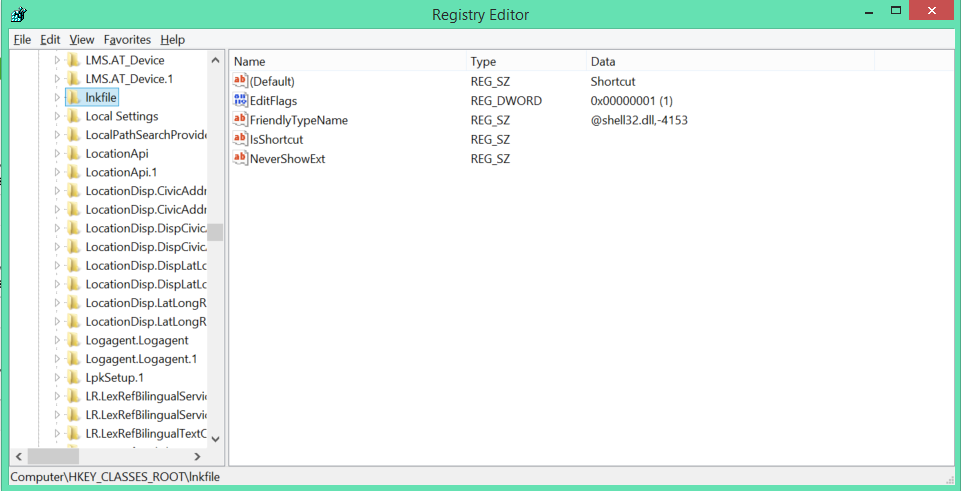
- เปิด ตัวจัดการงาน เลือกแท็บกระบวนการและค้นหา explorer.exe หรือ Windows Explorer บน Windows 10 หรือใหม่กว่า สิ้นสุดกระบวนการ/งานนี้
- สุดท้าย ไปที่เมนู ตัวจัดการงาน ไฟล์ บนตัวจัดการงาน เลือก (งานใหม่(เรียกใช้...)) พิมพ์ explorer.exe และคลิกตกลง เสร็จแล้ว
ใช่ ง่ายมากใช่มั้ย?
อัปเดต: วิธีนี้ไม่ควรใช้กับ Windows 8.1 เนื่องจากจะทำให้เมนูเริ่มต้นที่มุมล่างซ้ายของเดสก์ท็อปใช้งานไม่ได้ มันใช้งานได้กับ Windows 10 และใหม่กว่า

No comment for this article.