
Maybe many of us have seen a small arrow on desktop application shortcut after we install the application on Windows. Some may like it but some people may think it doesn't look beautiful enough. We may need to remove these small arrows somehow the desktop can be clean. So how?


Many people may use a third party software to remove the small arrow, then they must go to download the software and install them. But do we necessary do this in order to remove the small arrow?The answer is no.
Here I propose a simple way to do this. Follow steps below:
- Go to Start-Run-Type
regedit - After the regedit window, find
HKEY_CLASSES_ROOT, expand it and find the keylnkfile, on the right panel, delete the valueIsShortcut. Close the regedit window;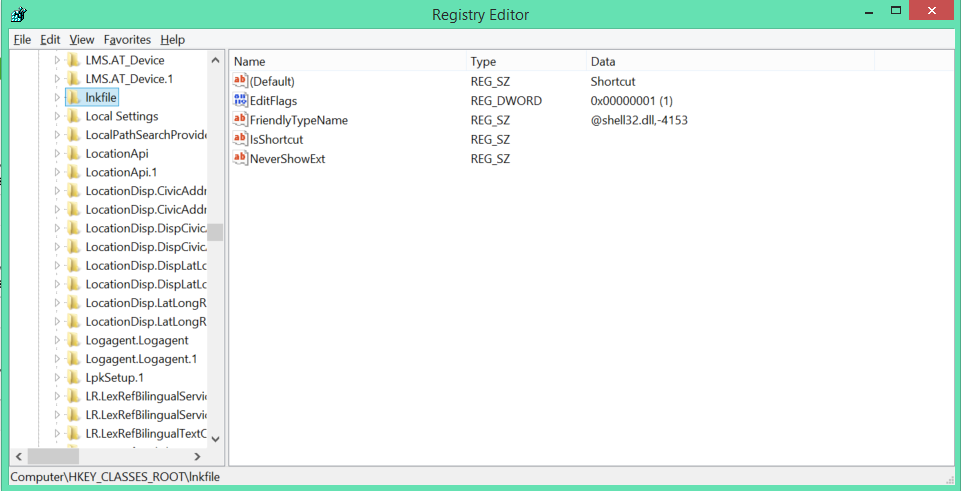
- Open Task Manager, select tab Processes and find explorer.exe or Windows Explorer on Windows 10 or later, end this process/task
- Finally, go to Task Manager menu File on task manager, select (New Task(Run...)), type explorer.exe and click OK. Done
Yeah, quite simple, right?
Update: This method should not be applied on Windows 8.1 as it will make the Start menu at the left-bottom corner of the desktop nonfunctional. It works on Windows 10 and later.

No comment for this article.