Remove the Small Arrow on Desktop Application Shortcut on Windows

English 简体中文 繁体中文 ภาษาไทย Tiếng Việt
Summary

Many Windows users seek to remove the small arrow overlay on desktop application shortcuts for a cleaner aesthetic, often considering third-party software. A more direct, native method involves a quick modification within the Windows Registry. To implement this, open regedit, navigate to HKEY_CLASSES_ROOT\lnkfile, and delete the IsShortcut value from the right panel. Finally, restart the explorer.exe process via Task Manager to apply the changes. This technique is effective for Windows 10 and later versions, but it is crucial to avoid applying it on Windows 8.1, as it can render the Start menu non-functional.

也許我們許多人在Windows安裝應用程式後,都曾在桌面應用程式捷徑上看到一個小箭頭。有些人可能喜歡它,但也有些人可能認為它不夠美觀。我們可能需要以某種方式移除這些小箭頭,才能讓桌面乾淨整潔。那麼,該怎麼做呢?


     

許多人可能會使用第三方軟體來移除小箭頭,然後他們必須下載並安裝這些軟體。但是,我們是否一定要這麼做才能移除小箭頭呢?答案是否定的。

在此,我提出一個簡單的方法。請按照以下步驟操作:

  1. 前往開始-執行-輸入regedit
  2. 在regedit視窗中,找到HKEY_CLASSES_ROOT,展開它並找到金鑰lnkfile,在右邊的面板中,刪除值IsShortcut。關閉regedit視窗;
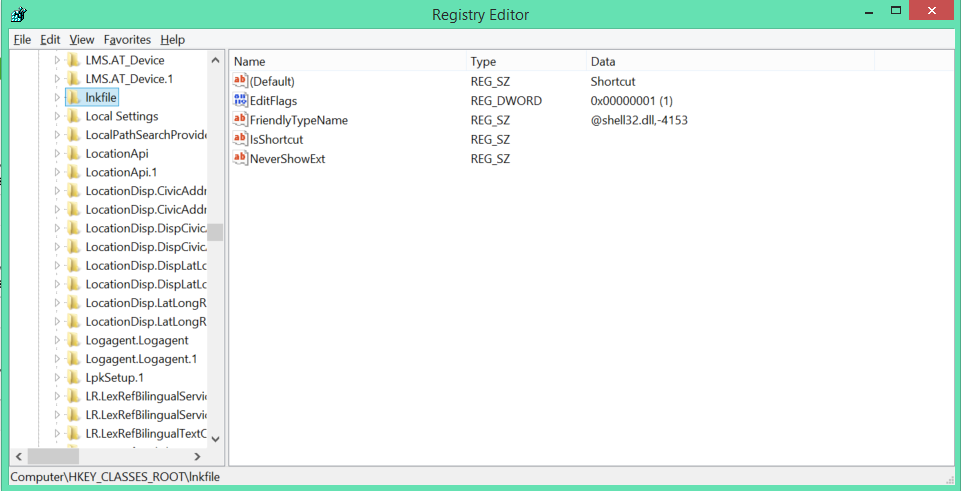
  3. 開啟工作管理員,選擇「程序」索引標籤,並找到Windows 10或更高版本上的explorer.exeWindows資源管理器,結束此程序/工作
  4. 最後,前往工作管理員的檔案選單,選擇(新增工作(執行...)),輸入explorer.exe並點擊確定。完成

是的,相當簡單,對吧?

更新:此方法不應應用於Windows 8.1,因為它會使桌面左下角的開始功能表無法使用。它適用於Windows 10和更高版本。

SMALL ARROW SHORTCUT DESKTOP APPLICATION WINDOWS

  RELATED

  COMMENTS

0

No comment for this article.