
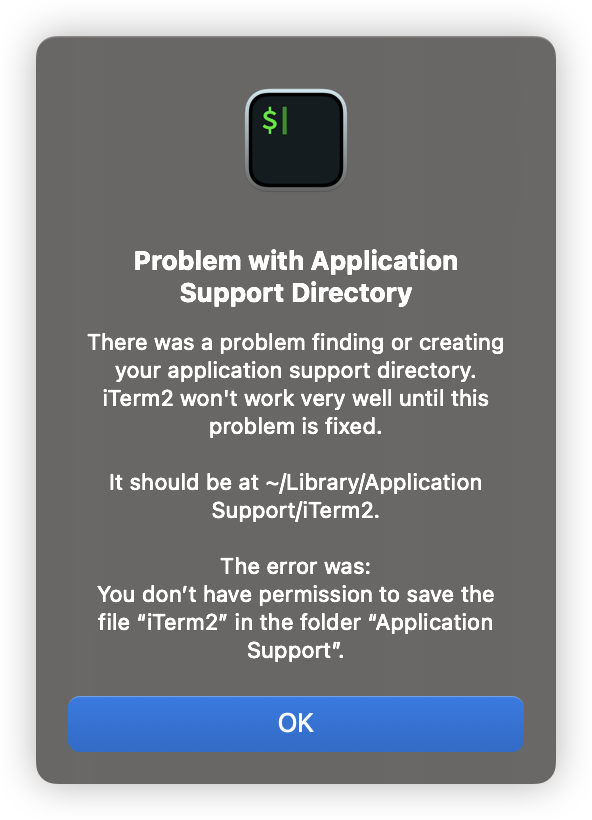
In case you have a new MacOS setup (especially on the newly released Apple M4 MacBook) and you are trying to install/launch iTerm2 on your system, you may encounter an error where it complains that you don't have enough permission to access Application Support, the error message would be like
There was a problem finding or creating your application support directory. iTerm2 won't work very well until this problem is fixed.
It should be at ~/Library/Application Support/iTerm2.
The error was:
You don't have permission to save the file "iTerm2" in the folder "Application Support".
If you encountered this error, can try to do below fixes and see if they are working.
Fix 1
Grant the iTerm2 application Full Disk Access, can follow the iIterm2 wiki page. Once done, give a retry.
Fix 2
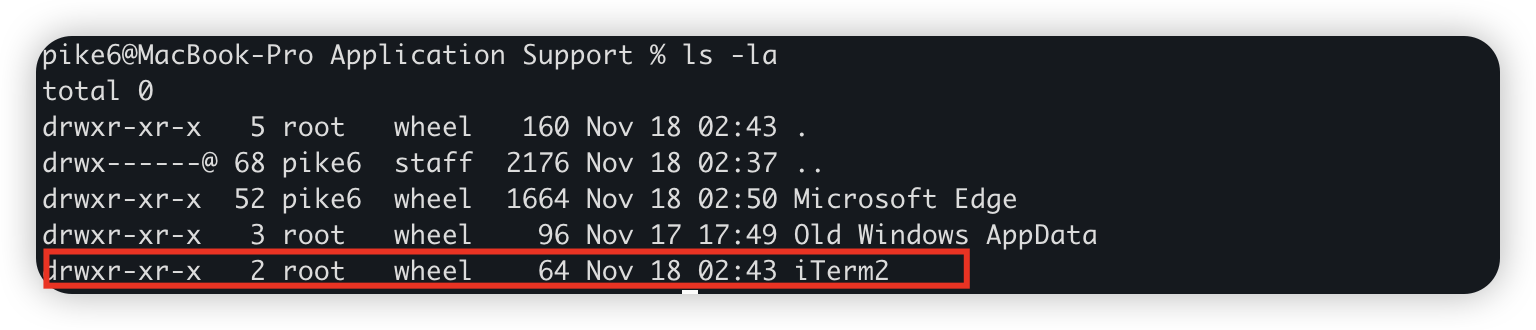
In case above fix doesn't work, can follow the error description and create a folder at ~/Library/Application Support/iTerm2 manually. Then give a retry.
Or you have other fix which fits your case, welcome to share it at the comment zone below.

No comment for this article.