Fix Permission Issue for iTerm2 to Access Application Support on MacOS

English 简体中文 繁体中文 ภาษาไทย Tiếng Việt
Summary

When setting up iTerm2 on a new macOS system, especially M4 MacBooks, users may encounter a permission error preventing access to `~/Library/Application Support/iTerm2`. This issue, indicated by a "You don't have permission" message, can be resolved through a couple of methods. First, grant iTerm2 Full Disk Access in System Settings, following the official iTerm2 wiki for detailed guidance. If that doesn't resolve the problem, a second approach involves manually creating the `~/Library/Application Support/iTerm2` directory.

如果您有新的MacOS設定(尤其是在新發表的Apple M4 MacBook上),並且您嘗試在您的系統上安裝/啟動 iTerm2,您可能會遇到一個錯誤,它抱怨您沒有足夠的權限存取Application Support,錯誤訊息會像這樣

找到或建立您的應用程式支援目錄時發生問題。在這個問題解決之前,iTerm2將無法正常工作。

它應該位於~/Library/Application Support/iTerm2。

錯誤是:

您無權在「Application Support」資料夾中儲存檔案「iTerm2」。
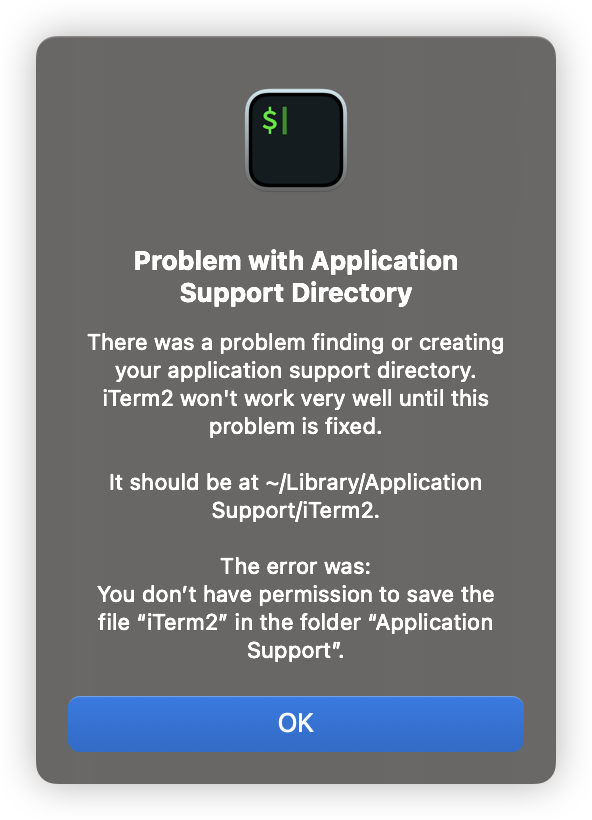
如果您遇到此錯誤,可以嘗試以下修復方法,看看它們是否有效。

修復方案1

授予iTerm2應用程式完整磁碟存取權,可以參考iIterm2 wiki頁面。完成後,再試一次。

修復方案2

如果上述修復方法無效,可以按照錯誤描述,手動在~/Library/Application Support/iTerm2建立資料夾。然後再試一次。
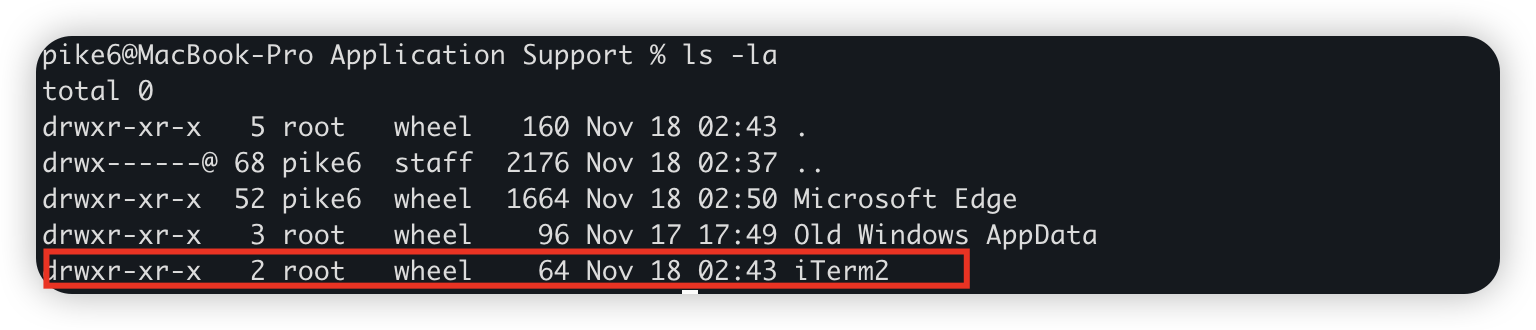
或者您有其他適合您情況的修復方法,歡迎在下面的評論區分享。

FIX MACOS APPLICATION SUPPORT ITERM2 PERMISSION ISSUE

  RELATED

  COMMENTS

0

No comment for this article.