
As a programmer, I always believe that the best way to understand something is by actually getting the hands dirty by testing it out ourselves. In past few years, with the introduction of ChatGPT, AI and associated technologies such as LLM come to a hot spot in tech industry and there are lots of platforms available and different models coming out for people to test out.
This post I will demonstrate a step-by-step guide on how to run Llama(a Meta LLM) on a MacOS machine with a model. This will just do a simple installation and run and test out how it works. It doesn't involve how to fine-tune or train your own data set.
Prerequisites
- Binary: The llama-cpp binary can be installed with brew with below command
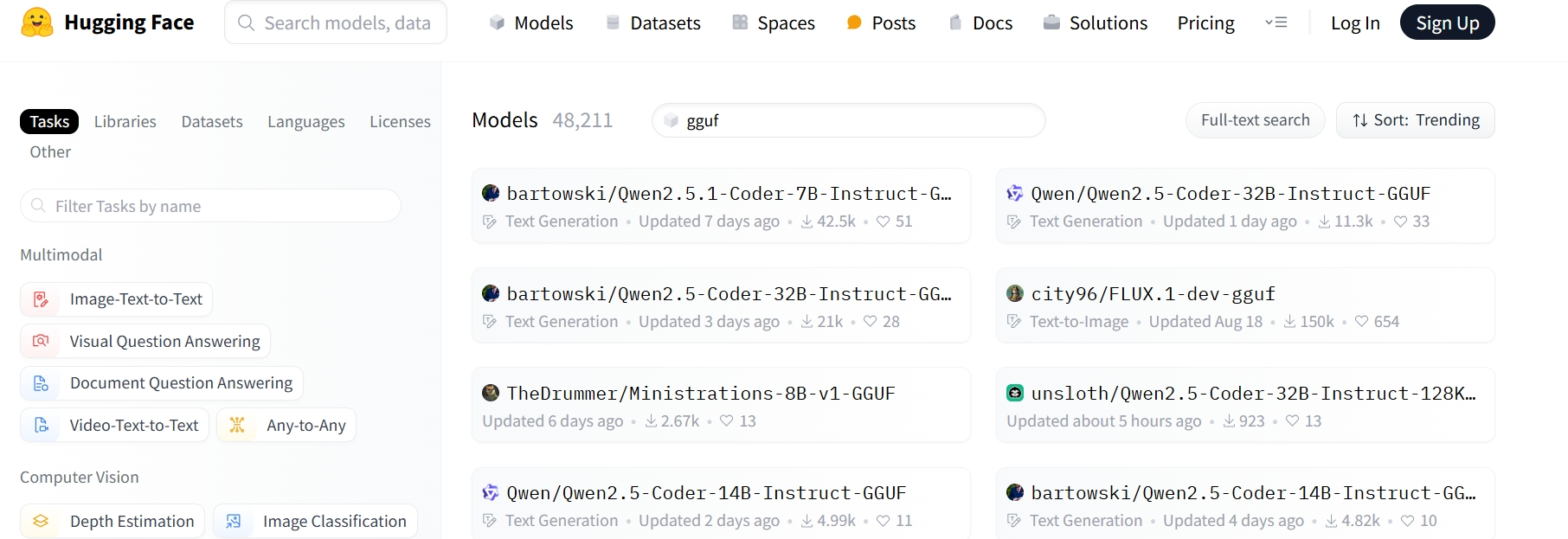
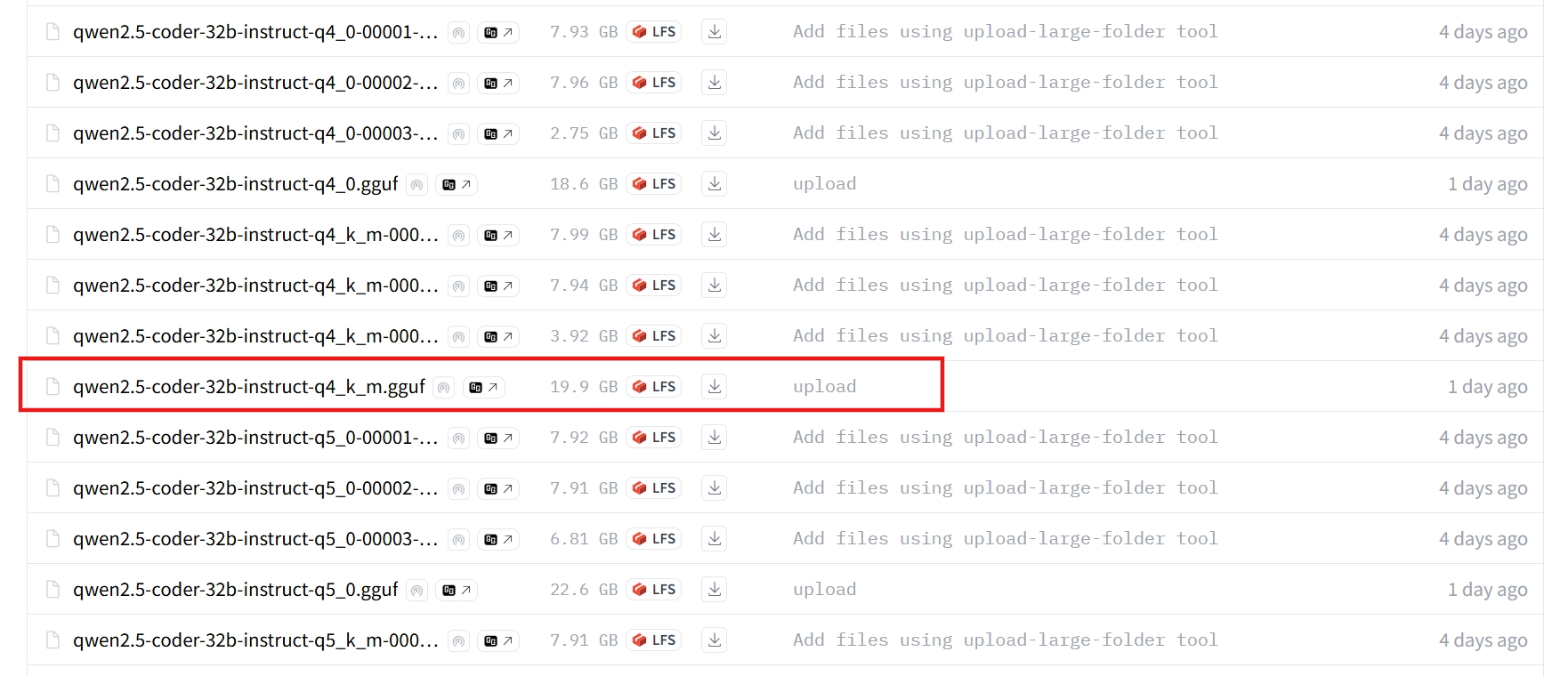
brew install llama.cpp - Model: Here we just download a model from Hugging Face(a LLM model repository just like code repository such as GitHub). Note for llama-server to run, we need a model with GGUF format. Can search gguf
Running
Once have the binary and model data downloaded, can just issue below command
llama-server --flash-attn --ctx-size 0 --model qwen2.5-coder-14b-instruct-q4_k_m.ggufWhen this command runs, it should bring up a HTTP server and loads the model. If you see any error, can refer to Appendix.
Testing
To test the model. Can open a browser and access with http://127.0.0.1:8080
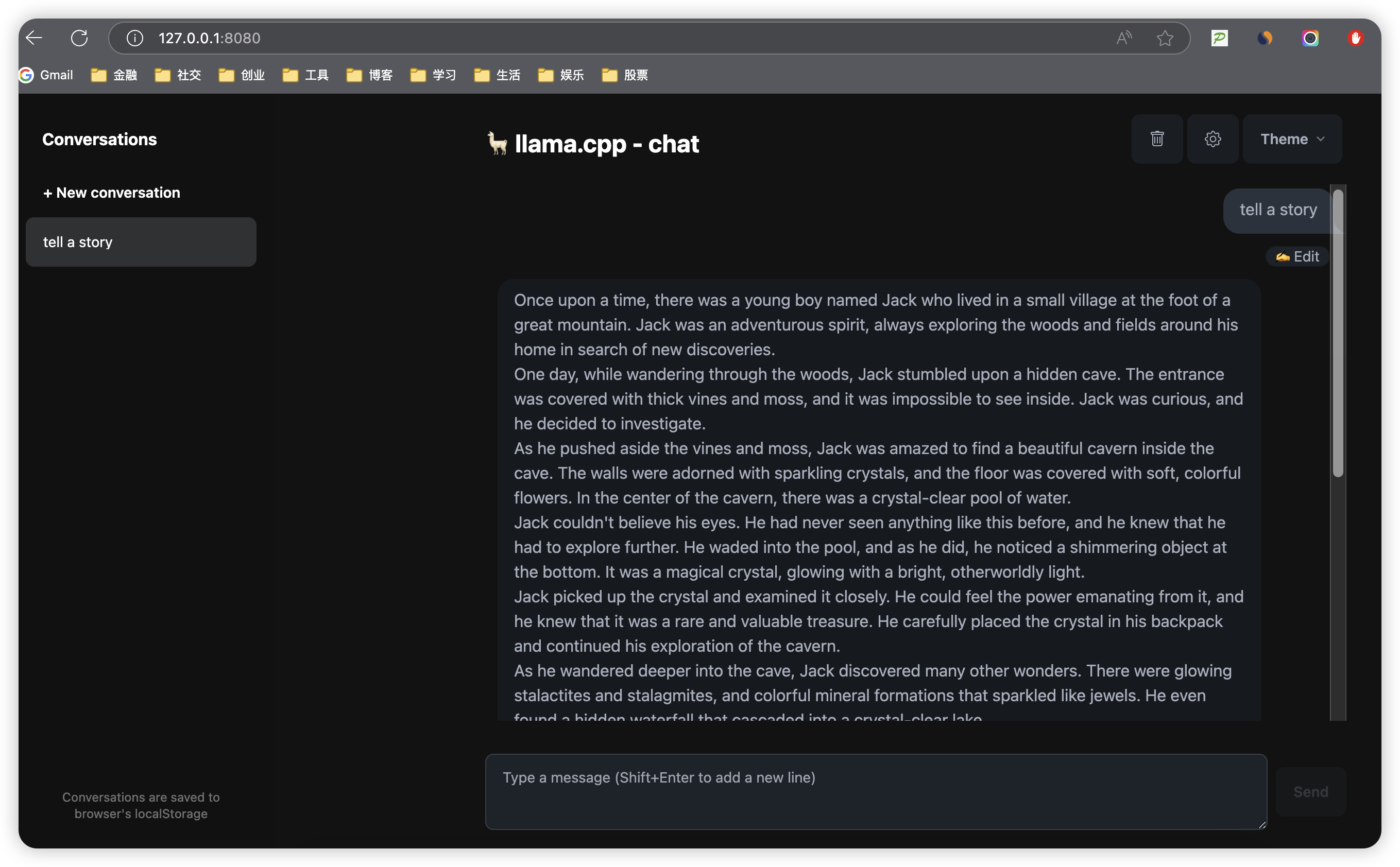
This indicates that you are able to access the model and can play around on your local machine.
Appendix
failed to allocate buffer for kv cache
llama_new_context_with_model: freq_scale    = 1
ggml_backend_cpu_buffer_type_alloc_buffer: failed to allocate buffer of size 34359738368
llama_kv_cache_init: failed to allocate buffer for kv cache
llama_new_context_with_model: llama_kv_cache_init() failed for self-attention cache
common_init_from_params: failed to create context with model 'c:\ai\qwen2.5-coder-32b-instruct-q4_k_m.gguf'
srv    load_model: failed to load model, 'c:\ai\qwen2.5-coder-32b-instruct-q4_k_m.gguf'
main: exiting due to model loading error
This indicates your hardware is not able to allocate necessary buffer. You can either download a small model or upgrade your hardware spec.
Input prompt is too big compared to KV size. Please try increasing KV size.
llama_decode: failed to decode, ret = -3
srv  update_slots: failed to decode the batch: KV cache is full - try increasing it via the context size, i = 0, n_batch = 2048, ret = -3
slot      release: id  0 | task 3 | stop processing: n_past = 23, truncated = 0
srv    send_error: task id = 3, error: Input prompt is too big compared to KV size. Please try increasing KV size.
srv  cancel_tasks: cancel task, id_task = 3
The error description does suggest what to change, in this case, the context size, originally, we specified 0 in the command line about context size, now remove that option.

No comment for this article.