
如果您已找到此处,您可能已经对RAGFlow项目的潜力感到兴奋,并渴望看到它的实际应用。我当时也处于同样的位置,所以我深入研究了代码库,以了解它如何与自定义大型语言模型 (LLM) 配合使用。这篇文章将引导您了解我的发现,并向您展示如何使用您自己的 LLM 运行RAGFlow。
截至目前 (2024 年 11 月 8 日),RAGFlow 对本地 LLM 的支持有限,并且vLLM尚不兼容。在我们的案例中,我们需要在一个具有严格数据安全要求的公司项目中对其进行测试,其中提示不得到达任何第三方 LLM 端点。这种对安全的需要是本指南背后的驱动力,因此让我们深入探讨使 RAGFlow 安全地与您的自定义 LLM 设置一起工作的步骤。
1. 按照官方指南从源代码启动 ragflow
官方指南链接可在 https://ragflow.io/docs/dev/launch_ragflow_from_source 找到
2. 在前端添加您自己的 LLM 的徽标
- 将您的徽标 svg 添加到 web/src/assets/svg/llm(例如:web/src/assets/svg/llm/myownllm.svg)
- 通过在 web/src/constants/setting.ts 中添加条目来将 svg 链接到 LLM 工厂。
// web/src/constants/setting.ts
export const IconMap = {
  MyOwnLLM: 'myownllm', // [MyOwnLLM] 徽标文件名
  'Tongyi-Qianwen': 'tongyi',
  //...
}
3. 将您的 LLM 添加到前端的 LocalLLMFactories
- 添加一个条目以在 web/src/pages/user-setting/constants.tsx 中的 LocalLlmFactories 中注册
//`web/src/pages/user-setting/constants.tsx`
export const LocalLlmFactories = [
  'MyOwnLLM', //[MyOwnLLM]
  'Ollama',
  'Xinference',
  'LocalAI',
]
- 在 web/src/pages/user-setting/setting-model/ollama-modal/index.tsx 中添加一个条目到 optionsMap
// web/src/pages/user-setting/setting-model/ollama-modal/index.tsx
const optionsMap = {
    MyOwnLLM: [
      // [MyOwnLLM]
      { value: 'chat', label: 'chat' },
    ],
    HuggingFace: [
      { value: 'embedding', label: 'embedding' },
      { value: 'chat', label: 'chat' },]
    // ...
}
4. 将您的 LLM 信息添加到 conf/llm_factories.json 中的 factory_llm_infos
{
    "factory_llm_infos": [
        {
            "name": "MyOwnLLM",
            "logo": "",
            "tags": "LLM",
            "status": "1",
            "llm": [
                {
                    "llm_name": "myownllm",
                    "tags": "LLM,CHAT,128K",
                    "max_tokens": 128000,
                    "model_type": "chat"
                }]
        },]
    //...
}
5. 将您 LLM 的 llm_name 和 api_key 传递给 api/apps/llm_app.py 中的 add_llm 方法
如果您的 LLM 中未使用 api_key,则此步骤不重要。
def add_llm():
    # ....
    elif factory == "MyOwnLLM": #[MyOwnLLM]
        print("setting myownllm")
        print(req)
        llm_name = req["llm_name"]
        api_key = req["api_key"]
    # ...
6. 在 rag/llm 中注册您的 LLM
- rag/llm/__init__.py
ChatModel = { "MyOwnLLM": MyOwnLLM, # ... } - rag/llm/chat_model.py
如果您想添加一个聊天模型,请添加一个新的类 MyOwnLLM 来定义您自己的 LLM。在下面的示例中,我为 chat 和 chat_streamly 方法定义了一个简单的回显 LLM。这里我只为聊天模型添加了 LLM。其他模型也适用。
class MyOwnLLM(Base): # [MyOwnLLM]
    def __init__(self, key, model_name, base_url):
        self.client = None
        self.model_name = model_name
        self.api_key = key
        self.base_url = base_url

    def chat(self, system, history, gen_conf):
        prompt = history[-1]['content']
        response = "Echo: you typed " + prompt
        token_usage = len(prompt + response)
        return response, token_usage

    def chat_streamly(self, system, history, gen_conf):
        prompt = history[-1]['content']
        response = "Echo: you typed " + prompt
        ans = ""
        for i in response:
            ans += i
            yield ans
        token_usage = len(prompt + response)
        yield token_usage
7. 启动后端
bash docker/entrypoint.sh8. 启动前端
在另一个终端中,启动前端
cd web
npm run dev
如果一切设置正确,您应该会看到您自己的 LLM 已添加到 LLM 选项列表中。通过传递 api_key、model_name 来启用您自己的 LLM,如果您没有将它们用于您自己的 LLM,则可以是任何内容。
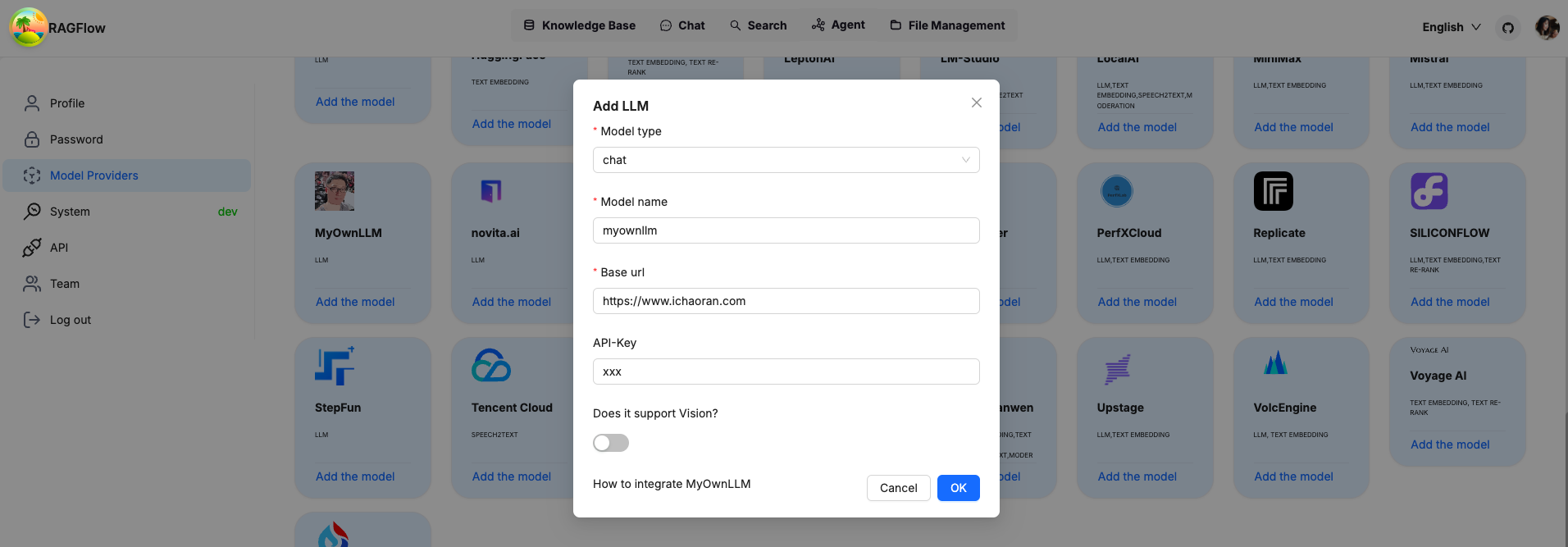
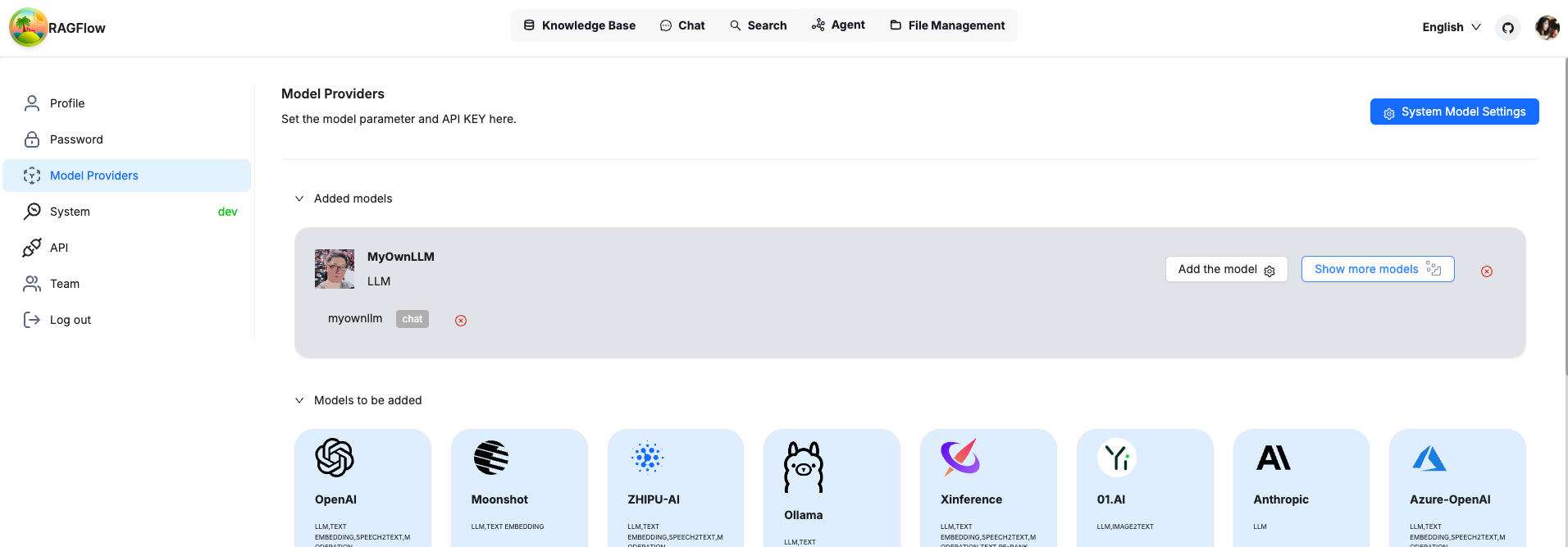
确认后,您将看到您自己的 LLM 已添加并可以使用。
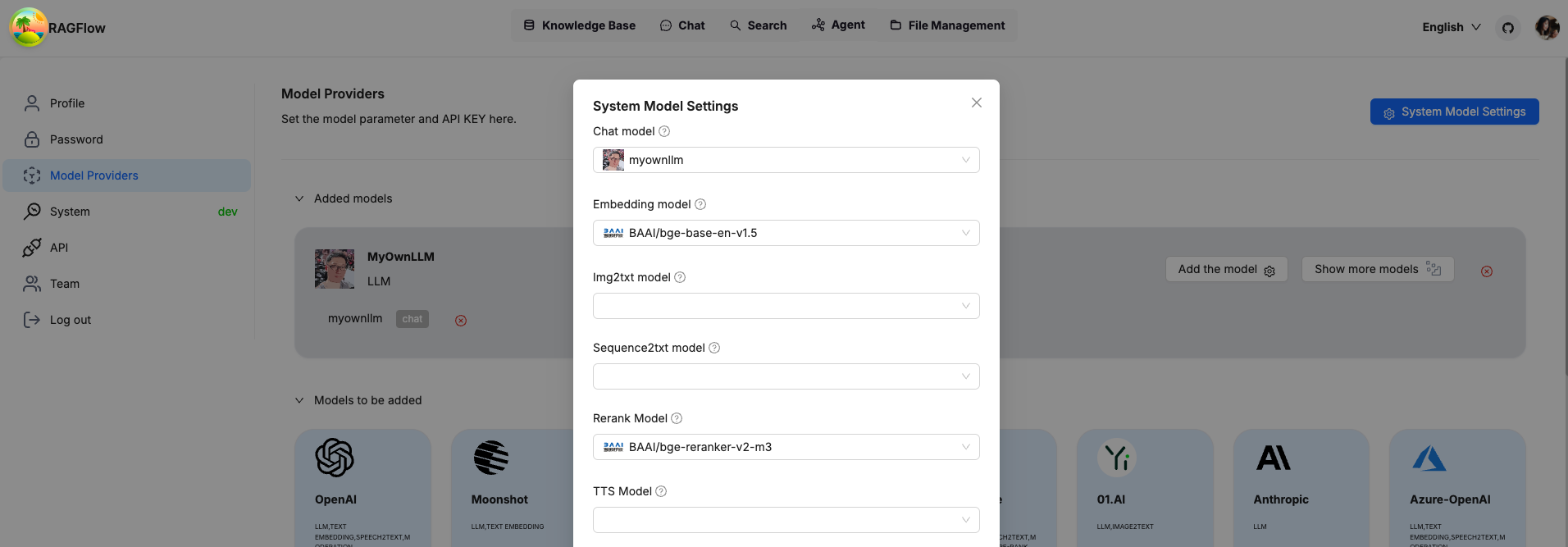
将您自己的 LLM 设置为系统范围的 LLM,您就可以开始了。
让我们去聊天,发送一个简单的提示来测试它。正如您所看到的,机器人回复了我们发送的相同消息,正如预期的那样。
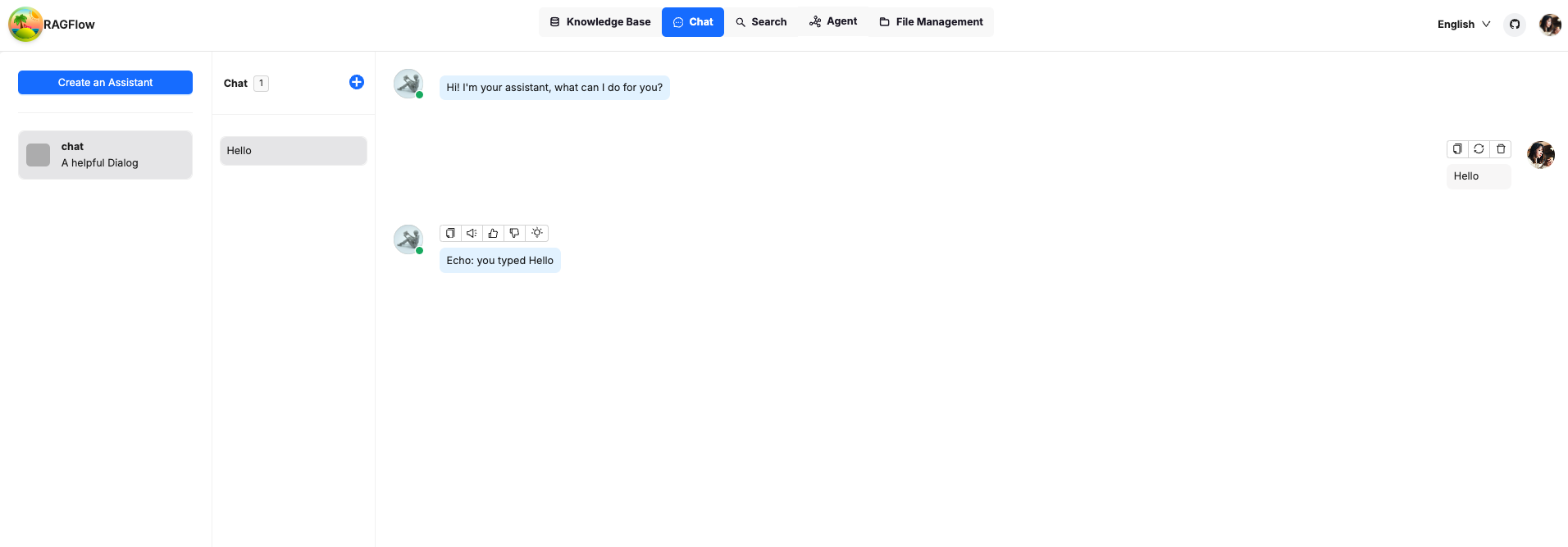
恭喜您,您可以安全地完全离线玩转 RAGFlow!
注意:这篇文章经原作者 刘超然(一位数据科学爱好者)授权,可在我们的网站上转载。

No comment for this article.