
In cases where a new Eclipse is installed or the location of the Java virtual machine binaries has been changed, you may face issue when launching Eclipse. The error would look like.
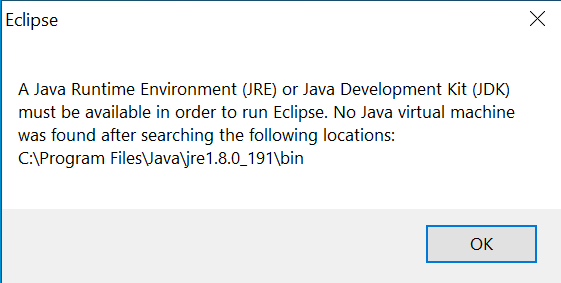
And if you go to the location specified in the error message, there is no such path indeed.
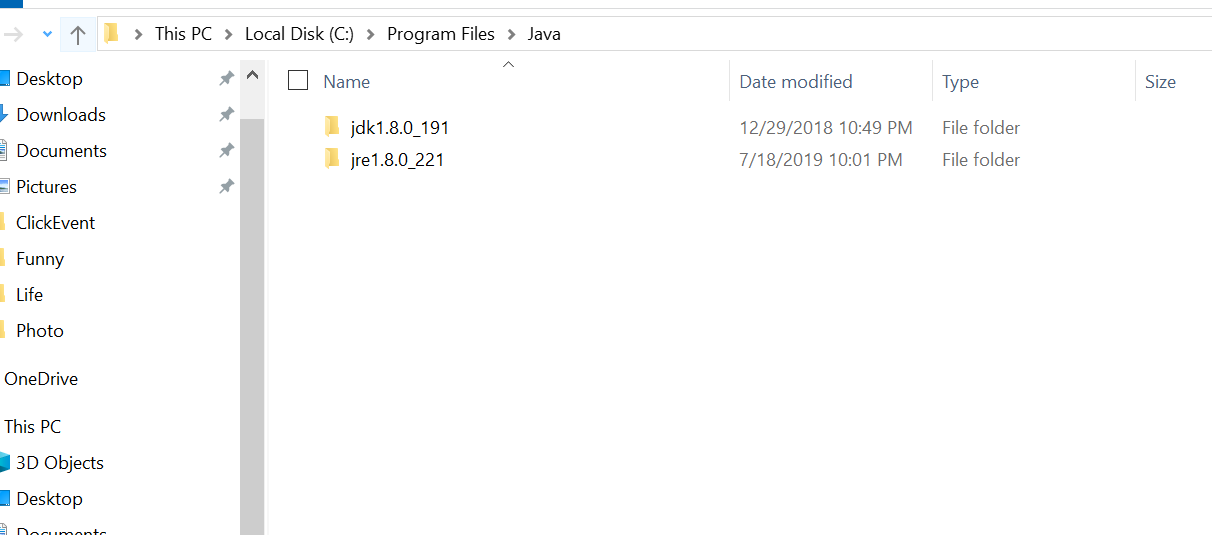
And when clicks OK, the program just exits. The issue here is that it tries to find the java.exe binary and launch the program but it failed to locate it and hence exits.
To fix this, you first need to ensure you have Java installed on your system no matter it's a JRE or JDK. Then navigate to the Eclipse installation path and find the eclipse.ini file.
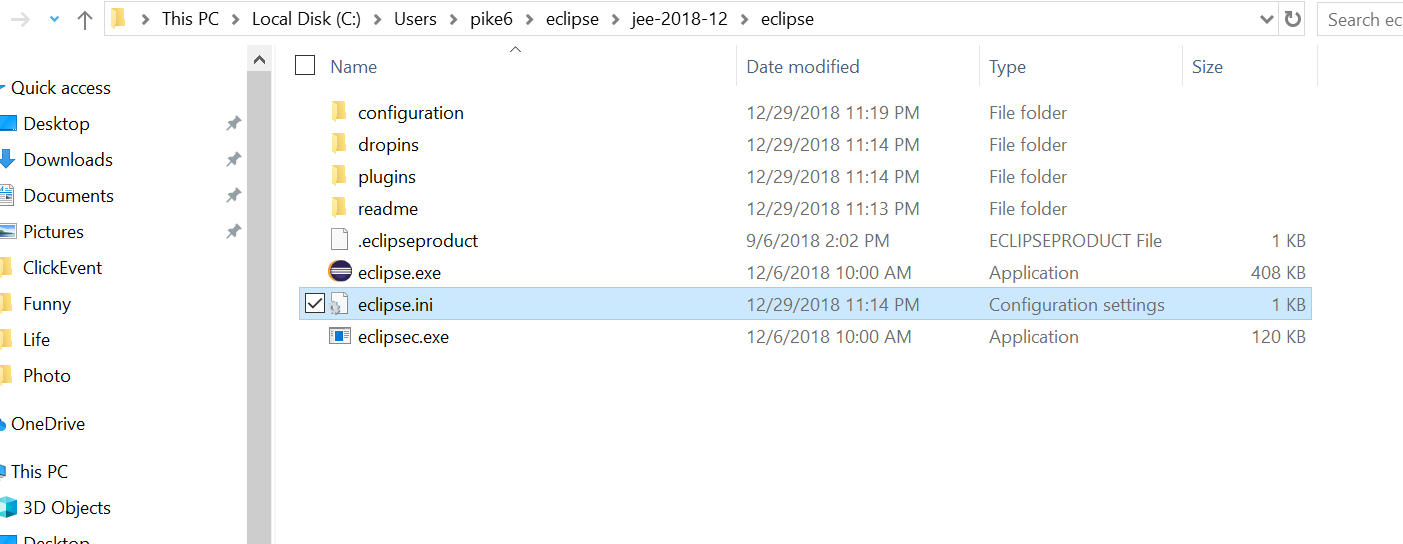
This is the initialization file loaded when Eclipse launches and there is a configuration of the JVM location.
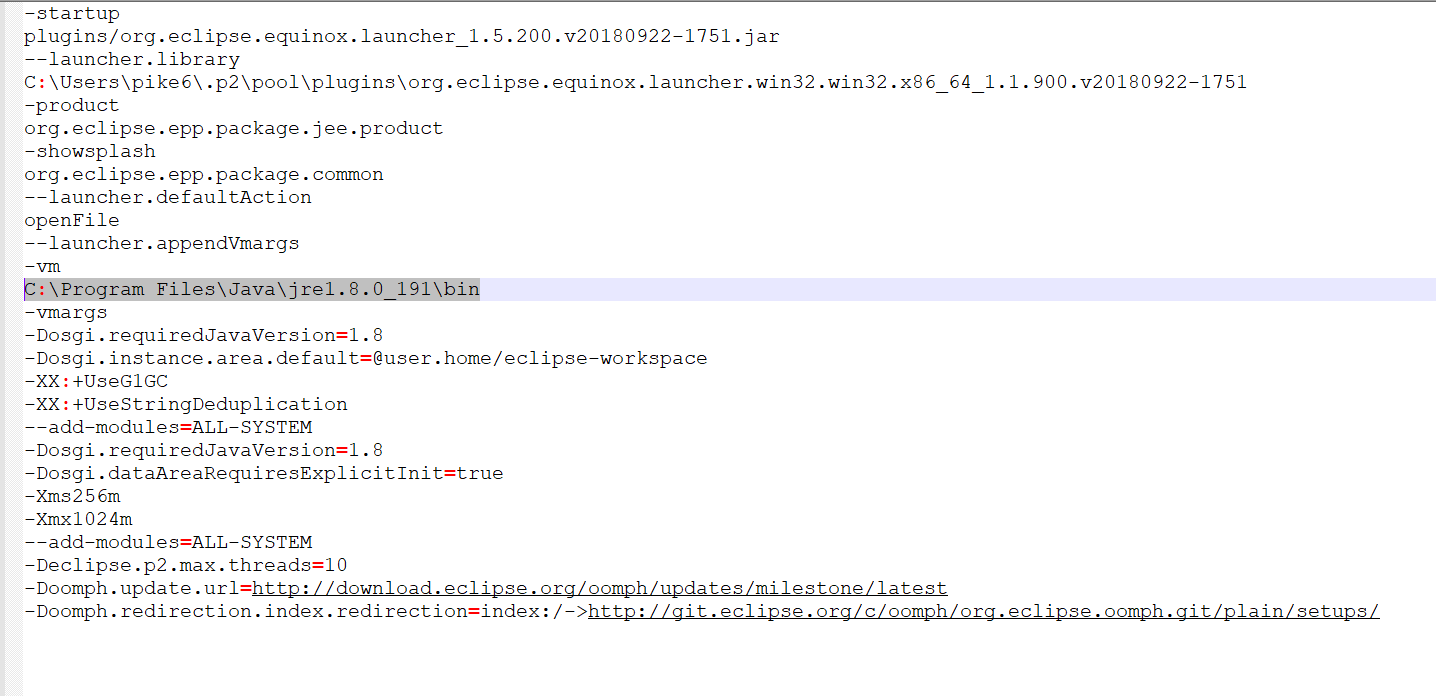
Update the location to the correct one on the system and save it.
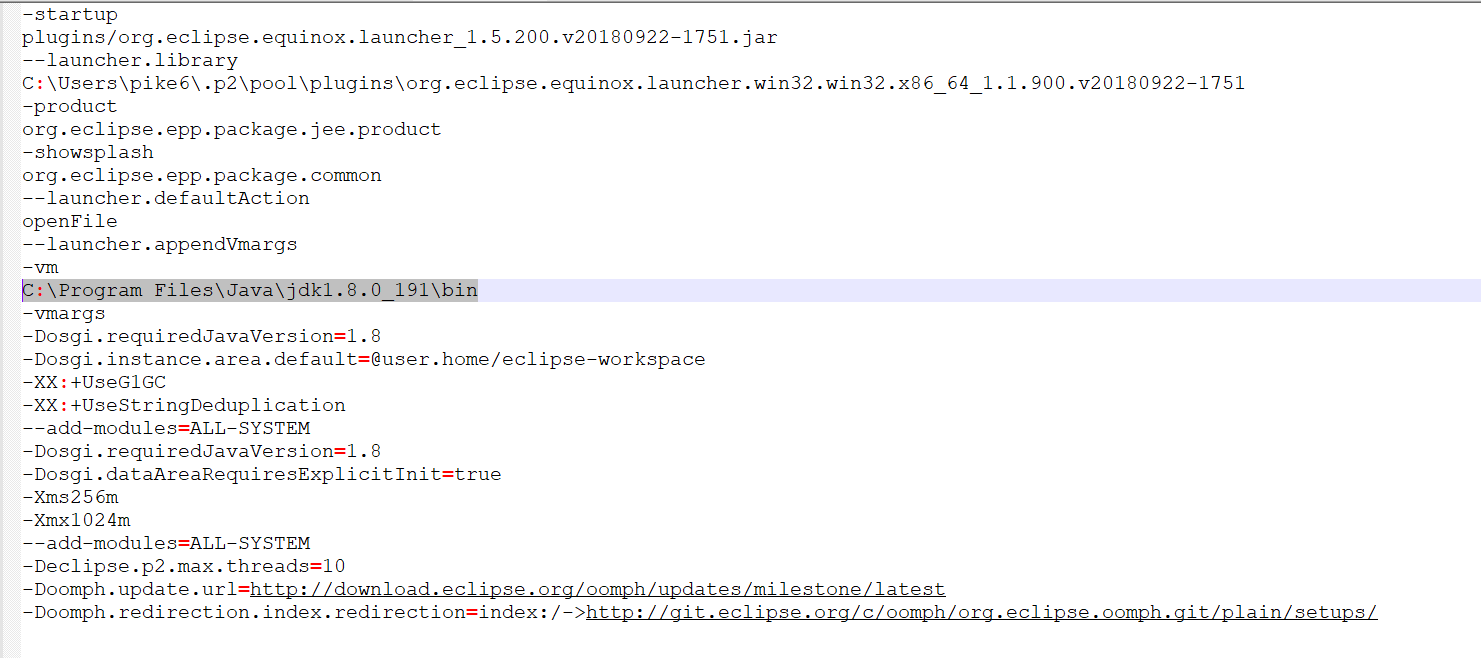
Now try to launch Eclipse again and you will find it can successfully launch.


No comment for this article.